How to create a Telegram sales bot and sell a paid group
Step by step to create your Telegram sales bot without coding: charge by Pix, card or boleto and let buyers into your paid group as soon as they pay.
· 11 min read
To create a Telegram sales bot, you connect three things: the bot, which talks to the buyer; a payment gateway, which charges by Pix, card or boleto; and the paid group or channel, which the buyer joins after paying. A sales bot platform makes that connection: it shows the plans, charges, sends the group link when the payment clears and removes whoever did not renew.
In this guide, we at Gerencia VIP walk you through it on our Telegram sales bot, from sign-up to the first sale. No coding is needed, and you can do it all from your phone. Creating the account and the bot is free: Gerencia VIP charges only $0.80 + 2.99% per approved sale.
In short, the steps are:
- Create your Gerencia VIP account.
- Connect the gateway that will receive the payments.
- Add the paid group as a product, with its plans and the group connected.
- Create your sales bot and turn the paid group on in it.
- Make a test purchase and share the bot’s link.
What is a Telegram sales bot
A sales bot is an automated Telegram contact that sells for you. Whoever taps Start gets your welcome messages and your products, with the plans as buttons. The person picks a plan, pays and gets access in the same chat, at any hour.
| Task | Selling by hand | With a sales bot |
|---|---|---|
| Confirm the payment | Check every Pix receipt | The gateway confirms it on its own |
| Grant access | Send the group link to each customer | The invite link arrives instantly |
| Collect renewals | Remind each customer, one by one | The bot sends a reminder before it expires |
| Remove who did not renew | Check the list and remove by hand | Whoever does not renew leaves when it ends |
What you need before you start
- A Telegram account, on your phone or computer.
- A group or channel you administer. Group, supergroup or channel, public or private: they all work. If you do not have one yet, create it in Telegram itself, under New Group or New Channel.
- A payment gateway, the company that charges the buyer by Pix, card or boleto. Gerencia VIP connects to gateways such as Mercado Pago and Pushin Pay. If you do not have an account with any of them yet, the panel itself has the link to create one.
Step 1: create your Gerencia VIP account
Open admin.gerencia.vip/signup and fill in your name, email and password, or sign up with Google. Confirm your email through the link that arrives in your inbox, and the panel opens up. No credit card is required.
If you want to see the panel first, the demo opens without signing in, with a sample account.
Step 2: connect the payment gateway
In the panel, open Settings › Payment gateways, pick a gateway and tap Connect: the panel shows that gateway’s steps. If you do not have an account with it yet, tap Create an account on the same card. The charge is created in your own gateway account, and the money from each sale goes straight into it, without passing through Gerencia VIP.
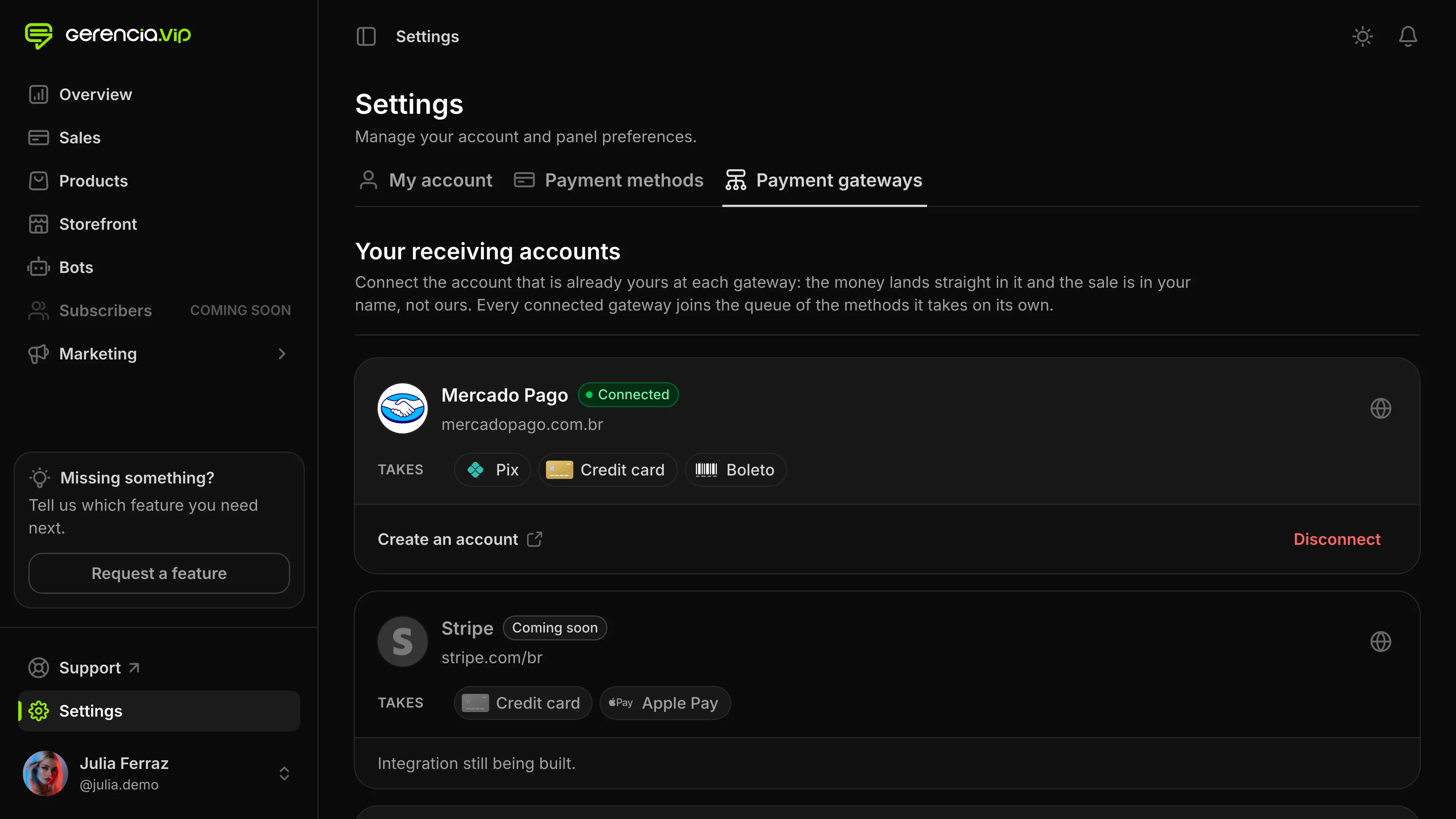
You can also connect more than one gateway, and we recommend it. With two or more, you set in Payment methods the order in which they charge each payment method. If the first one refuses the charge, the next in line takes over, and a sale is not lost to a single decline.
Step 3: add the paid group as a product
In Gerencia VIP, everything you sell is a product. Besides the paid group, you can also sell media content, such as packs of photos, videos and audio, which the buyer receives in the chat with the bot as soon as the payment clears.
For the group, open Products › New product and choose VIP group (Telegram). Give the product a name and write the short description, which is what the buyer reads first. Tap Create product.
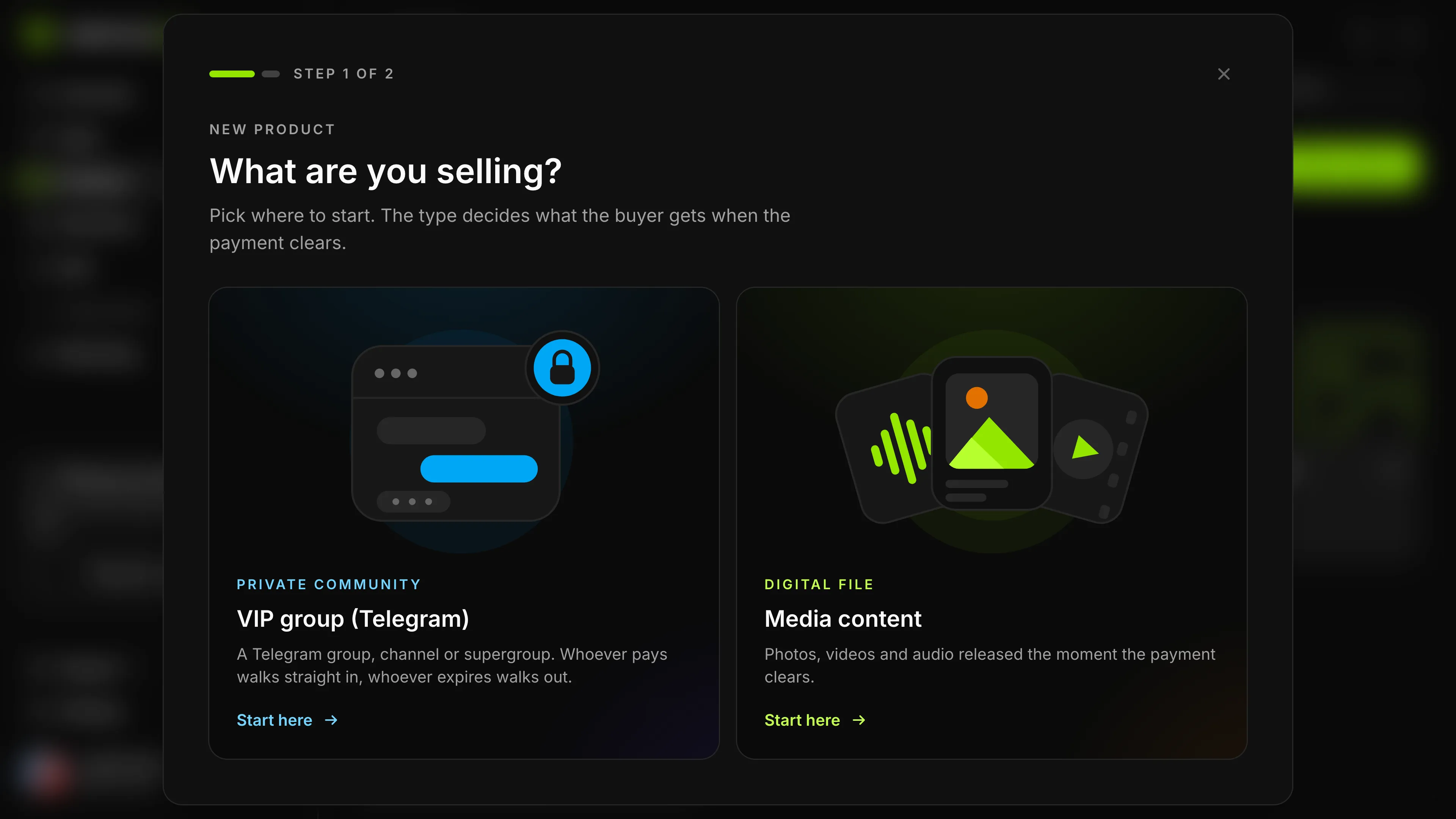
To be ready to sell, the product still needs a plan, the connected group and a full description, with the product’s details, which you write in the Customization tab. The product page shows what is missing under Getting started.
Create the plans
In the Plans tab, tap New plan and choose how the plan charges:
- Per period: this is the subscription. Access lasts a week, a month, three months, six months, a year or the number of days you choose. Before it expires, the buyer gets a reminder to renew; without payment, access ends.
- Lifetime: the buyer pays once, and access never expires.
Then set the price. The same plan can have a price in Brazilian reais and in US dollars, one amount for each currency. Create as many plans as you want on the product: the buyer picks between them in the chat with the bot.
Connect the group or channel
In the Groups tab, tap Add and then Open in Telegram. The link opens Gerencia VIP inside Telegram. There, you pick the group or channel from the list and confirm the Gerencia VIP bot as an administrator. The panel moves on by itself when the connection is done.
The bot joins only with permission to invite and remove members, which is what it needs to send the invite link and remove whoever did not renew. Whoever is already in the group stays there, with no need to join again.
The group is administered by the Gerencia VIP bot, not by your sales bot. That way, if your sales bot goes down, the group keeps working.
Step 4: create the bot
Open Bots › New bot. The panel offers two paths, and both end in the same place: a bot of your own, connected to Gerencia VIP.
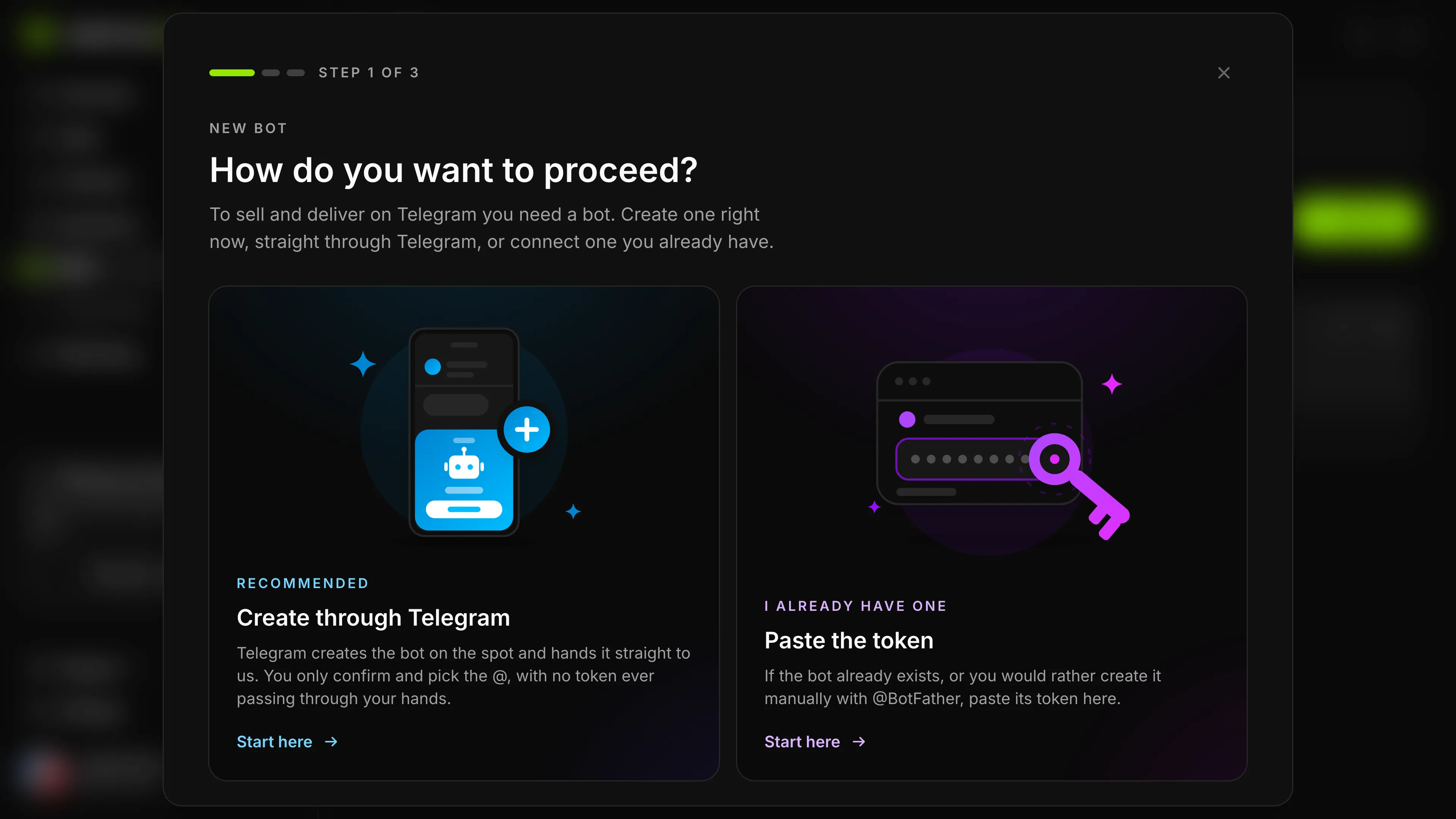
| Create through Telegram | Paste the token | |
|---|---|---|
| How it works | The panel opens Telegram, and there you choose the bot’s name and @ | You copy the bot’s token from @BotFather, inside Telegram, and paste it in the panel |
| Best for | Creating a new bot, without handling a token | Connecting a bot you already have |
Create through Telegram, without a token
Choose Create through Telegram and tap Open in Telegram. The link opens Gerencia VIP inside Telegram, where you choose the name and the @ the buyer will see and confirm the creation. The bot reaches the panel already connected.
Through @BotFather, pasting the token
@BotFather is Telegram’s official bot for creating and managing bots. To create yours:
- Open @BotFather and send
/newbot. - Send the bot’s name. It is what shows at the top of the chat, and you can change it later.
- Send the username, the bot’s @. It must be 5 to 32 characters long, use only Latin letters, numbers and underscores, and end in “bot”, like
AnasVipBotoranas_vip_bot. Choose carefully, because the username cannot be changed later. - @BotFather replies with the token: a number, a colon and a string of letters and numbers.
- In Gerencia VIP, choose Paste the token, paste it and tap Check the token.
The full rules are in Telegram’s documentation on @BotFather.
The token is the bot’s key: whoever has the token controls the bot, so do not send it to anyone. Gerencia VIP stores the token encrypted. If it leaks, send /token to @BotFather to generate a new one and paste it under Update token, in the bot’s menu in the panel.
Give the bot a nickname
Finally, the panel asks for an internal nickname for the bot, which only you see. On Telegram, the buyer still sees the name and the @.
Turn the paid group on in the bot
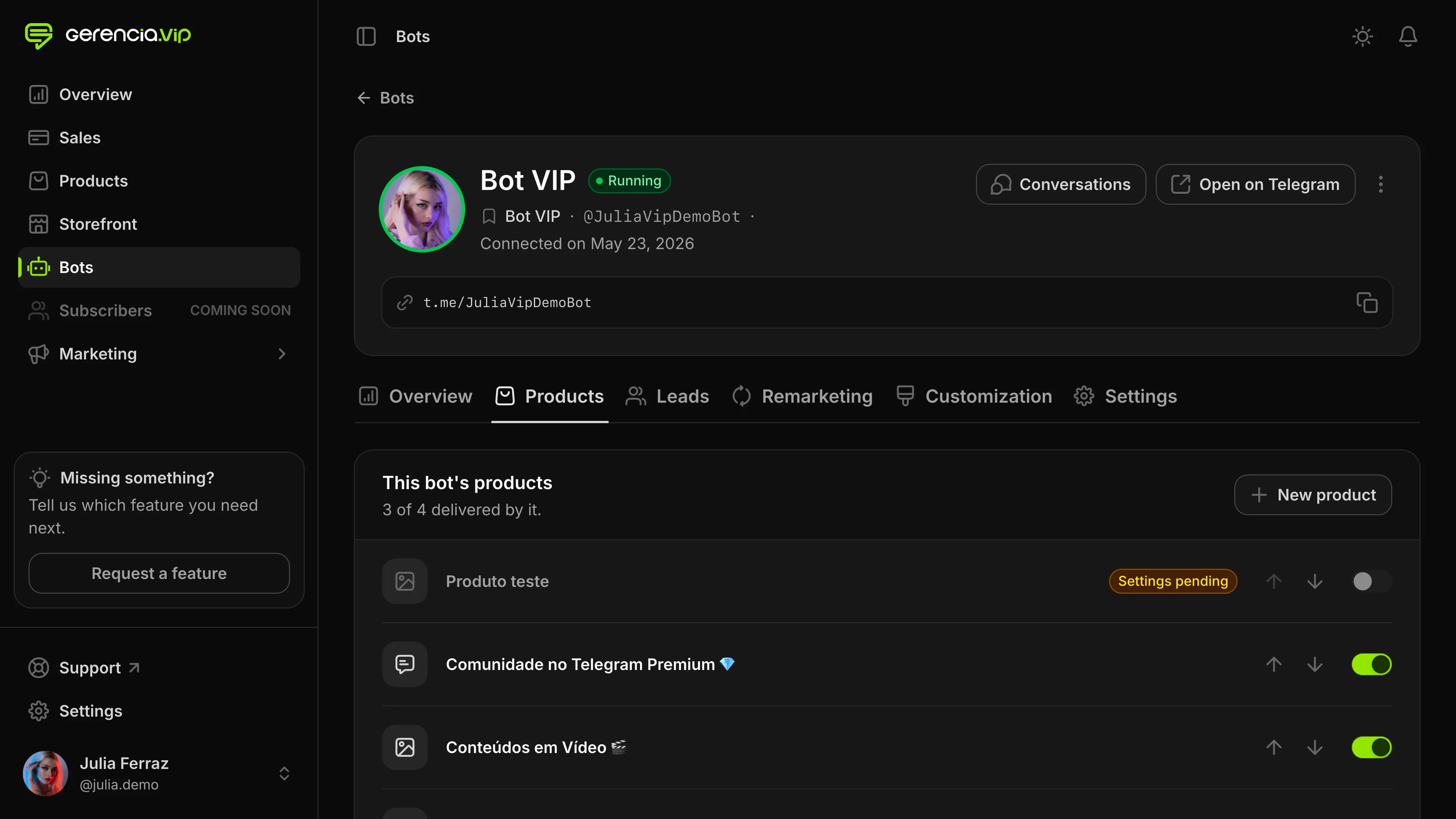
The bot only sells the products you turn on in it. Open the bot in the panel, go to the Products tab and turn on the switch of the paid group and of each product it should sell. The arrows change the order in which the products appear in the chat.
Customize the bot
If you like, make the bot your own:
- Customization › Start messages: the messages the bot sends when someone taps Start, before the products. Each one can have text, photos or videos and buttons.
- Customization › Bot texts: the other messages and buttons of the sale. They come ready, and you change only what you want.
- Settings › Checkout: whether the bot asks for the email before payment and whether the buyer can also pay in the browser.
- Settings › Protection: stops people from forwarding or saving what the bot sends.
Step 5: make a test purchase and share the link
Before you share it, buy from your own bot. On the bot’s page in the panel, tap Open on Telegram, tap Start, pick the cheapest plan and pay with Pix. Check three things: whether the payment-approved message arrived with the group button, whether the link let you in and whether the sale showed up under Sales in the panel.
Then share the bot’s link, which appears on its page in the panel: in your bio, in your ads, in your posts and wherever else you talk to your audience. The bot’s Overview tab shows how many people started the bot, how many orders were created and approved and the approved revenue.
What the buyer sees, from Start to renewal
- Opens the bot’s link and taps Start.
- Gets your start messages and the products, with the plans and prices as buttons.
- Picks a plan and pays. The Pix arrives in the chat itself; card and boleto open a payment screen inside Telegram. With boleto, payment confirmation can take up to three business days.
- When the payment clears, gets the payment-approved message with the button to join the group. The link works for a single entry.
- On per-period plans, the bot sends a reminder three days and one day before access ends and offers the renewal. Whoever renews gets another period.
- Whoever does not renew loses access when it ends and is removed from the group.
- At any time, the
/purchasescommand shows what the person bought and delivers the access again.
How much a Telegram sales bot costs
Creating the bot on Telegram is free. What costs money is the platform that charges and delivers access, and each one charges its own way: a monthly fee, a fee per sale or both.
At Gerencia VIP, there is no monthly fee and no plan: just $0.80 + 2.99% per approved sale. If the sale is not approved, you pay nothing. The gateway’s fee is separate and follows your account’s contract with it.
Frequently asked questions
Do I need to know how to code to create a sales bot?
No. On a sales bot platform, you create the bot and set up the sale in the panel. Coding one from scratch means wiring Telegram’s bot API to a gateway, receiving the payment notifications, generating the invite links and removing whoever expired, on a server that is always on.
Can I create the sales bot from my phone?
Yes. The Gerencia VIP panel works in your phone’s browser, and creating the bot and connecting the group happen inside the Telegram app.
Can I use the group and the bot I already have?
Yes. Connect the bot by pasting its token and connect the group or channel that already exists. Whoever is already in the group stays there.
Can I sell standalone packs of photos and videos?
Yes. In Products › New product, choose Media content and upload the photos and videos in the Media tab. To sell the pack on its own, create a Lifetime plan: the buyer pays once and receives the files in the chat with the bot as soon as the payment clears.
Does the money from sales pass through Gerencia VIP?
No. The charge is created in your gateway account, and the money goes straight into it.
Is a Telegram sales bot safe?
It depends on the platform. At Gerencia VIP, the money does not pass through the platform, the bot’s token is stored encrypted and access to the panel can have two-step verification.